Introducing Pexip Connect One: A single license to connect every meeting room. Learn more

Join any meeting
from any Logitech room

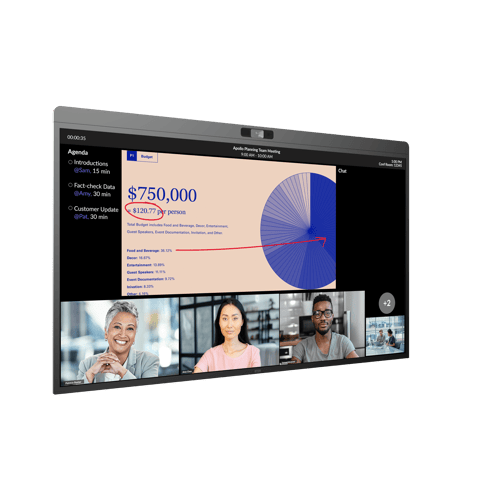
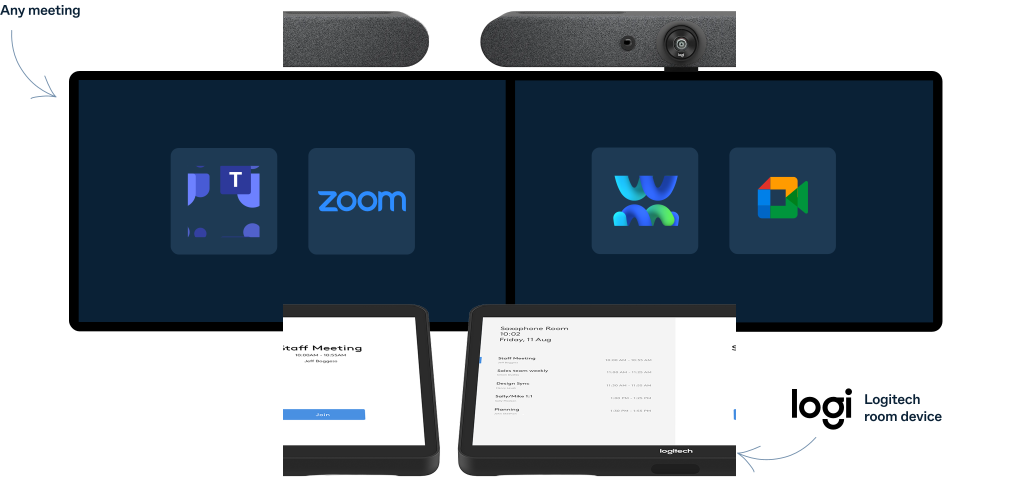
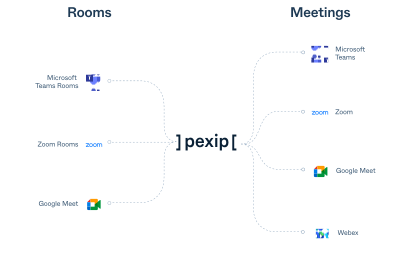
Join Microsoft Teams, Zoom, Google Meet, and Webex from your Logitech room systems. One touch. One experience.

Pexip-for-Logitech
Any-to-any-interop-graphic-logitech-mobile

Unlock your Logitech rooms

With Pexip, your Google Meet Rooms, Teams Rooms, and Zoom Rooms can join more meetings without extra hardware or new workflows. You see the same familiar interface for simple, seamless collaboration.
Pexip-Logitech-Google-Rooms
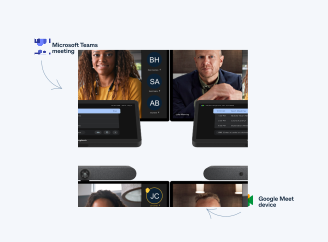
Google Meet Rooms
Join Microsoft Teams meetings straight from your Google Meet hardware.
Pexip-Logitech-Teams-Rooms
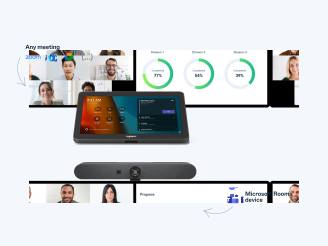
Microsoft Teams Rooms
Join Zoom, Webex, or any third-party meeting straight from your Teams Room devices.
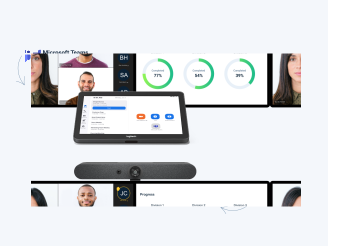
Pexip-Logitech-Zoom-Rooms
Zoom Rooms
Join Microsoft Teams meetings straight from your Zoom Room devices.

Secure meetings for government

Pexip’s FedRAMP Certified service lets you use your existing Logitech devices to join secure Microsoft Teams and Zoom for Government meetings, while maintaining the control and protection sensitive conversations require.

  • Join Teams and Zoom for Government meetings 
  • Meet security and procurement requirements
  • Protect high-value and confidential discussions

When combined with Logitech TAA-compliant devices, you can meet strict government standards and enable trusted, private communication from any room.
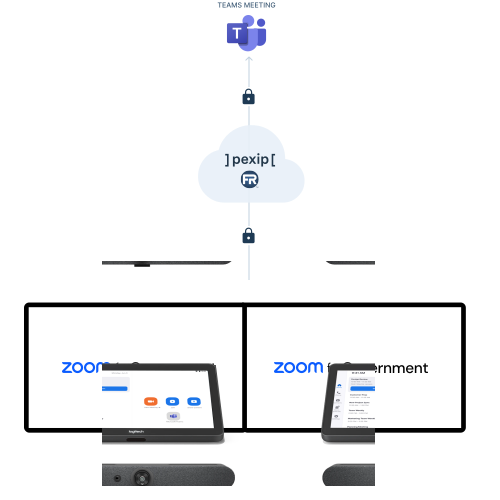
Pexip-Logitech-secure-meetings-for-government

Certified interoperability

Pexip is certified by Microsoft to provide interoperability solutions for Teams, Skype for Business, and Google Meet.


These certifications ensure reliability, delightful user experiences native to their platform of choice, and high-quality integrations.
Certified-for-Mictosoft-Teams-badge

Experience the difference

Together, Pexip and Logitech make all your meetings seamless.

Employees love it

  • Easily join any meeting from your Logitech device
  • See and share content
  • Focus on the meeting, not the technology

IT admins trust it

  • Improve room utilization rates
  • Increase ROI of your Logitech investment
  • Reduce IT support tickets and employee complaints

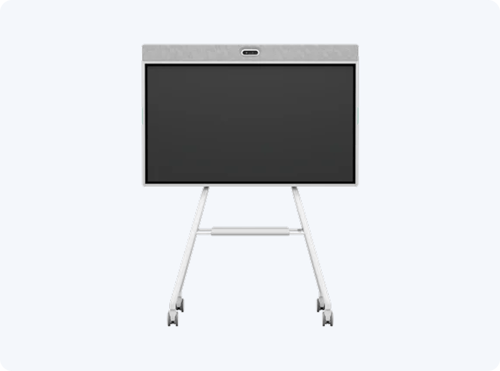
From the DTEN devices you love

D7X_MTR_2
DTEN D7X
DTEN Bar
DTEN ME Pro
D7 for Zoom
DTEN ONboard

Frequently asked questions

Which devices does this work with?

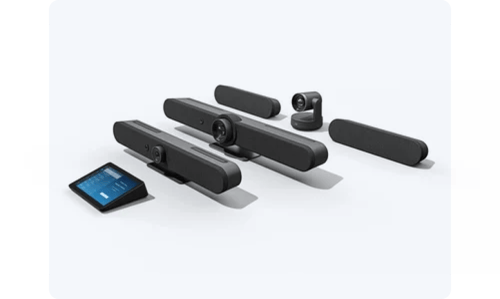
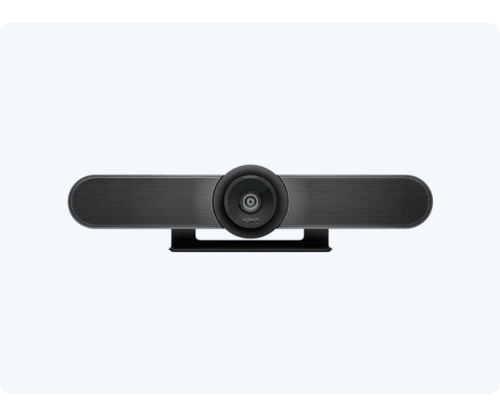
Pexip works for all Logitech video conferencing equipment including the Rally Bar, Rally Bar Mini, Rally Plus System, RoomMate, MeetUp, MeetUp2, and Tap touch panel.

I have a mix of Logitech devices attached to different services, such as Zoom, Microsoft, and Google. Can Pexip make all of my rooms work?

Yes. Pexip has solutions to enable interoperability for Zoom Rooms, Microsoft Teams Rooms, and Google Rooms. Regardless of which meeting platform your device is running, Pexip can enable that device to join different types of meetings hosted on other platforms. 

How are Pexip's offerings different from Direct Guest Join?

For Microsoft Teams Room and Zoom Room customers, Pexip enables a richer meeting experience with features like dual-screen support and in-room content sharing.


For Google Meet hardware customers, Pexip has the only solution that enables joining Teams meetings across all available devices, including Android and ChromeOS.

Is it easy to get started?

Yes, Pexip is simple to deploy and can be set up in minutes. All you need are Pexip licenses and administrator permissions on your meeting platform of choice.

How do I buy this?

Pexip can be purchased through an authorized reseller, a cloud marketplace, or in some cases, directly from Pexip. 

Learn more about your options here

Maximize your Logitech investment

Use your Logitech devices to join any meeting and future-proof your video conferencing investments. 


Pexip helps IT teams reduce complexity and get more value out of existing devices.


Start the conversation to see how we can help simplify your setup. 

This form could not be displayed because of your browser’s settings. Please adjust your browser’s privacy controls to allow embedded forms, or try opening this page in a different browser.

Follow the instructions for your browser to fix the problem: